Accessing Object Storage
Overview¤
Object storage is a data storage architecture that manages data as objects, as opposed to other storage architectures which manage data as a file hierarchy. Each object includes the data itself, an amount of metadata, and a globally unique identifier, and is stored within a bucket. Buckets are containers for objects. You can have one or more buckets and control who has access to each.
AUCyber object storage is provided by NetApp StorageGRID. There is a single S3 API endpoint, https://s3.aucyber.com.au, serving all sovereignty zones; the zone (CSZ or SSZ) is selected per bucket when the bucket is created. Both path-style (https://s3.aucyber.com.au/<bucket>/<key>) and host based (https://<bucket>.s3.aucyber.com.au/<key>) addressing are supported.
To use any S3 client you need:
- Endpoint:
https://s3.aucyber.com.au - Access Key ID and Secret Access Key - see Security Credentials
Web UI¤
Object storage is managed through the StorageGRID Tenant Manager at https://s3-tenant.aucyber.com.au. Log in with the tenant ID and root credentials supplied by AUCyber. If you do not have these, contact your Customer Success Manager, Sales Executive or AUCyber Support support@aucyber.com.au.
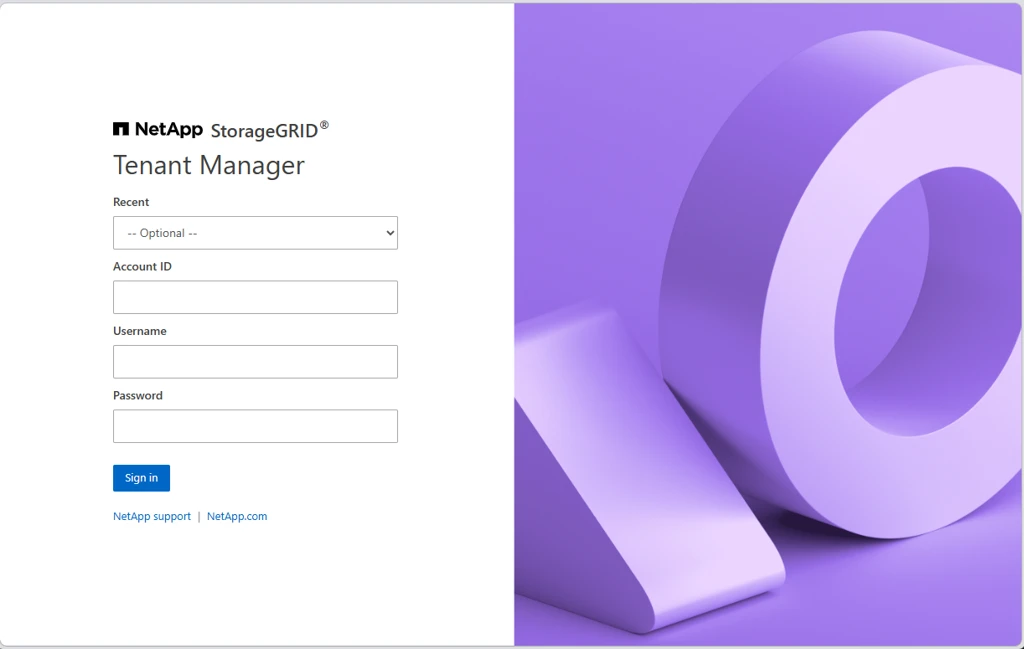
From the Tenant Manager you can create and manage buckets, users and S3 access keys, and view a summary of your object store including total buckets, objects, storage used and users.
AWS CLI¤
-
Configure a profile with your access key and secret key:
aws configure --profile=aucloud -
Use the
--endpoint-urlflag to target AUCyber object storage:# list your buckets aws --profile=aucloud --endpoint-url=https://s3.aucyber.com.au s3 ls # list objects in a bucket aws --profile=aucloud --endpoint-url=https://s3.aucyber.com.au s3 ls s3://mybucket # upload a file aws --profile=aucloud --endpoint-url=https://s3.aucyber.com.au s3 cp myfile.txt s3://mybucket/
s5cmd¤
s5cmd is a very fast, parallel S3 client. It reads credentials from the standard AWS environment variables or ~/.aws/credentials, and takes the endpoint as a flag:
export AWS_ACCESS_KEY_ID=<access key id>
export AWS_SECRET_ACCESS_KEY=<secret access key>

# list your buckets
s5cmd --endpoint-url https://s3.aucyber.com.au ls

# upload a file
s5cmd --endpoint-url https://s3.aucyber.com.au cp myfile.txt s3://mybucket/
Cyberduck¤
Cyberduck is a graphical S3 client for Windows and macOS.
- Click Open Connection.
- Select Amazon S3 from the drop-down.
- Enter the connection details:
- Server:
s3.aucyber.com.au - Port:
443 - Access Key ID: your access key
- Secret Access Key: your secret key
- Server:
- Click Connect.
S3 Browser¤
S3 Browser is a graphical S3 client for Windows. The free version restricts upload and download to two concurrent connections; paid versions allow up to 10.
-
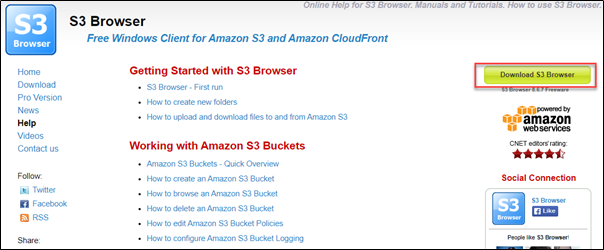
Navigate to https://s3browser.com/ and download S3 Browser.
-
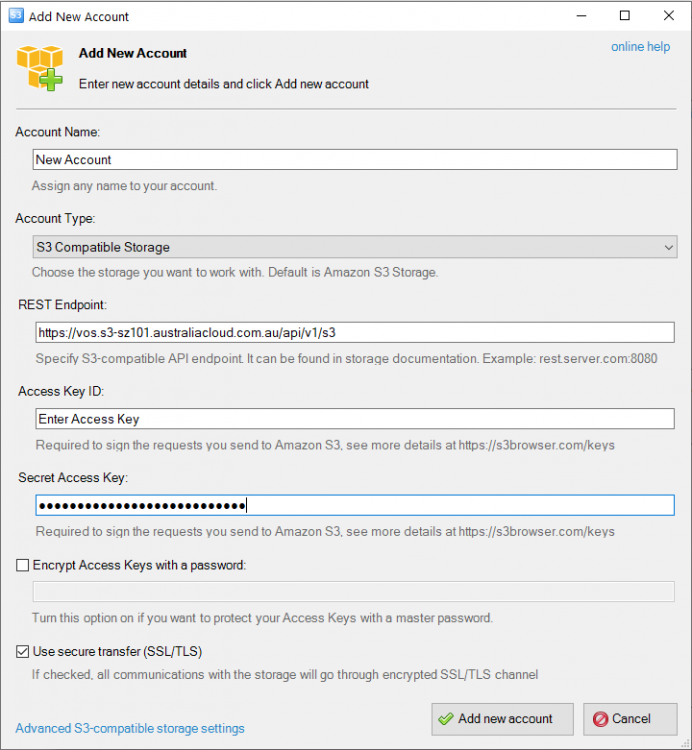
Add a new account with the following parameters:
- Account Name: a name of your choice
- Account Type: S3 Compatible Storage
- REST Endpoint:
s3.aucyber.com.au - Access Key ID: your access key
- Secret Access Key: your secret key
- Signature Version: Signature V4
- Addressing Model: Path Style
- Click Add new account
-
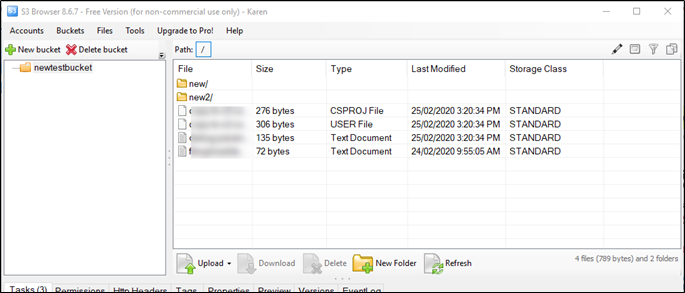
You can now manage your buckets - add, delete and download objects.