How to view storage profile usage
Overview¤
Before allocating more disk space in your AUCyber for VMware account, it is useful to check how much of your allocated space has been used.
Viewing your storage usage (VMware Cloud Director)¤
-
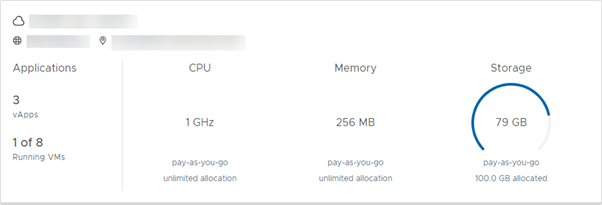
In the VMware Cloud Director Virtual Datacenters dashboard, go to the card for your data centre.
-
The Storage section shows how much storage you're currently using as well as the amount of allocated storage.
Viewing your storage usage (VMware Cloud Director API)¤
To check your storage profile usage programmatically, you need to call the appropriate VMware Cloud Director REST API endpoint.
The example assumes that you have created a VCD API token and set up the following three environment variables:
VCD_API_URL: the API server URL for your tenancy from the list of AUCyber VMware Cloud Director API Endpoints, without thehttps://prefixVCD_ORG: the unique name of your VCD tenancyVCD_API_TOKEN: your VCD API token
The example makes two calls to the API. The first call exchanges the API token for an access token, as described in Authenticating into VMware Cloud Director:
curl -X POST "https://$VCD_API_URL/oauth/tenant/$VCD_ORG/token" -H "Content-Type: application/x-www-form-urlencoded" --data-urlencode "grant_type=refresh_token" --data-urlencode "refresh_token=$VCD_API_TOKEN"
Having received an access_token in the response body, the second call passes it as a Bearer token in the Authorization header:
curl -H "Authorization: Bearer <access_token>" -H "Accept: application/*+xml;version=37.2" -i "https://$VCD_API_URL/api/query?type=orgVdcStorageProfile"
This call returns an XML structure, in which you can see an OrgVdcStorageProfileRecord element containing the following properties:
storageLimitMB="512000" storageUsedMB="65536"